Line
Lines are used to represent the flow of materials, signal transmission, or logical relationships between devices. For example:
- Pipeline connections represent material transportation
- Dashed lines represent signal transmission
- Lines of different colors represent different media
Through line animations, you can visually display the real-time flow status of materials.
Drawing Lines
Pen Drawing Lines
Select a line type, then click the pen to activate drawing with that line type.
Start: Left-click;
Pause: Right-click or enter;
End: esc.
Curves, Line Segments, Straight Lines, Mind Map Curves
You can use the pen to draw different types of curves, or select a line and modify its line type.
Horizontal Line
Press the shortcut key Shift, click the left mouse button to draw, right-click to end drawing (line type selected as straight line).
Vertical Line
Press the shortcut key Ctrl, click the left mouse button to draw, right-click to end drawing (line type selected as straight line).
Diagonal Line
Line type selected as straight line, select the pen, left-click to draw the starting point, hold down the shortcut keys Ctrl+Shift, move the mouse angle (in increments of 15°), left-click to draw the second point, right-click to end drawing.
Pencil Drawing Lines
You can use the pencil to draw any type of line. Click "Pencil" to activate the pencil tool, press the left mouse button on the canvas to start drawing, and the line will be drawn according to the mouse movement trajectory. Release the mouse button to end drawing.
Connecting Symbols with Lines
When the mouse hovers over a symbol, anchor points are activated. Press the mouse on an anchor point and drag it to the anchor point of another symbol. Release the mouse to draw a curve between the two symbol anchor points.
Convert Line to Symbol
Right-click on the line and select "Convert to Node".
Cutting/Merging Lines
Cutting lines: Select the line, move the mouse to the anchor point where you want to break the line, click, and press the S key.
Merging lines: When connecting lines, drag the connection end of the currently selected line to align with the connection end of another line, press the Alt key, release the mouse, and then release the Alt key.
Line Styles
After selecting a line, you can set the appearance style of the line in the property configuration area on the right:
- Line style: solid, dashed
- Line type: curve, polyline, straight line
- Connection style: bevel, round, default
- Line gradient: none, linear gradient
- Line color, hover color, selected color
- Line width
- Background: solid color background, linear gradient, radial gradient
- Background color, hover background color, selected background color
- Opacity: 0-1
- Anchor point color, anchor point radius (≥0)
- Shadow color, shadow blur, shadow X offset, shadow Y offset
- Border color, border width (≥0)
Line Animations
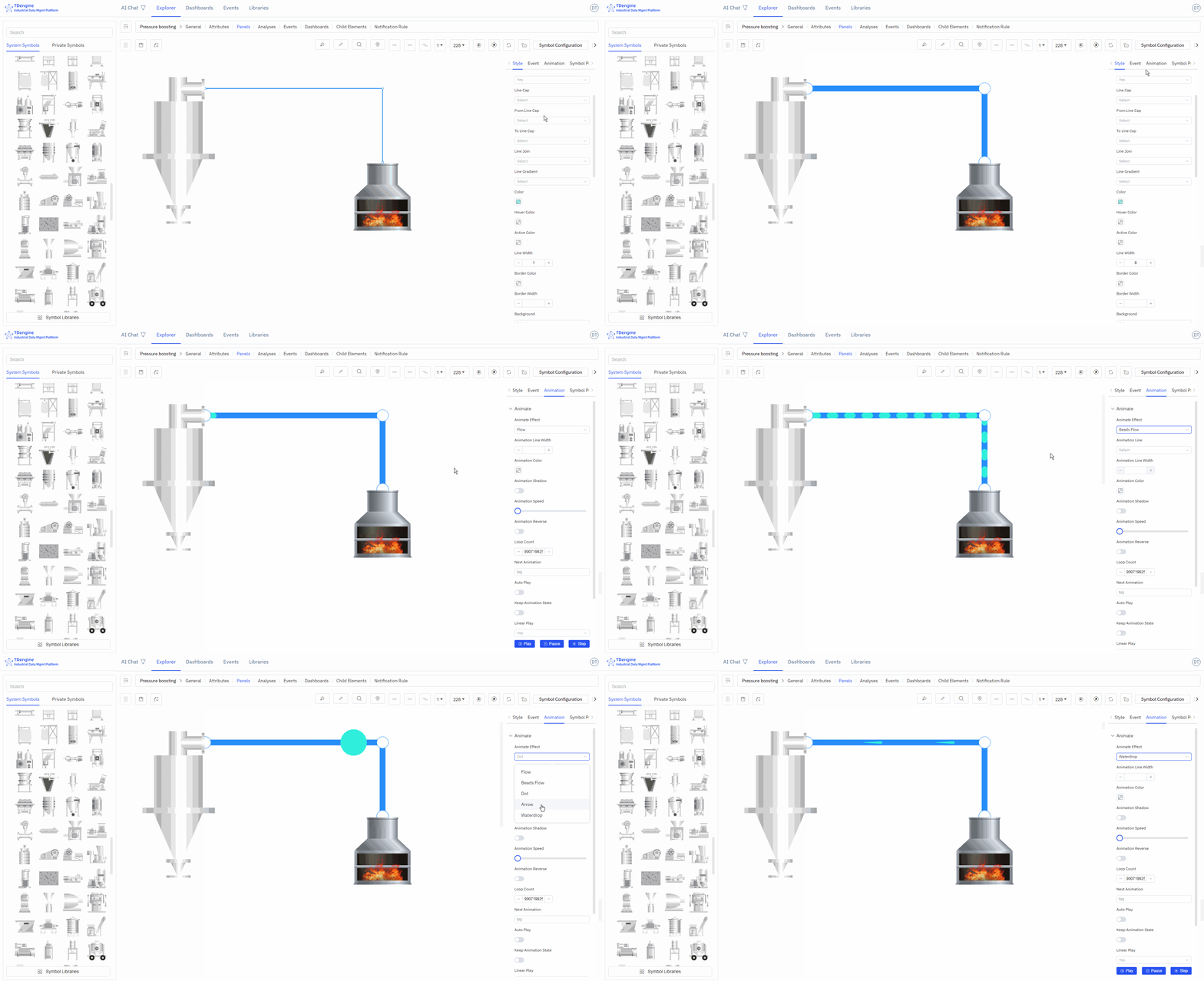
IDMP has built-in three animation effects for lines, making the visuals more dynamic.
- Animation effects: water flow, water droplet flow, dots.
- Animation line width (≥0), animation color, animation speed, reverse flow, number of loops.
- Next animation: tag, autoplay, maintain animation state, linear playback: yes/no.